Documentation · Workspaces
Schedule a prompt for an agent
The Mac where you create a schedule keeps its clock and delivery history.
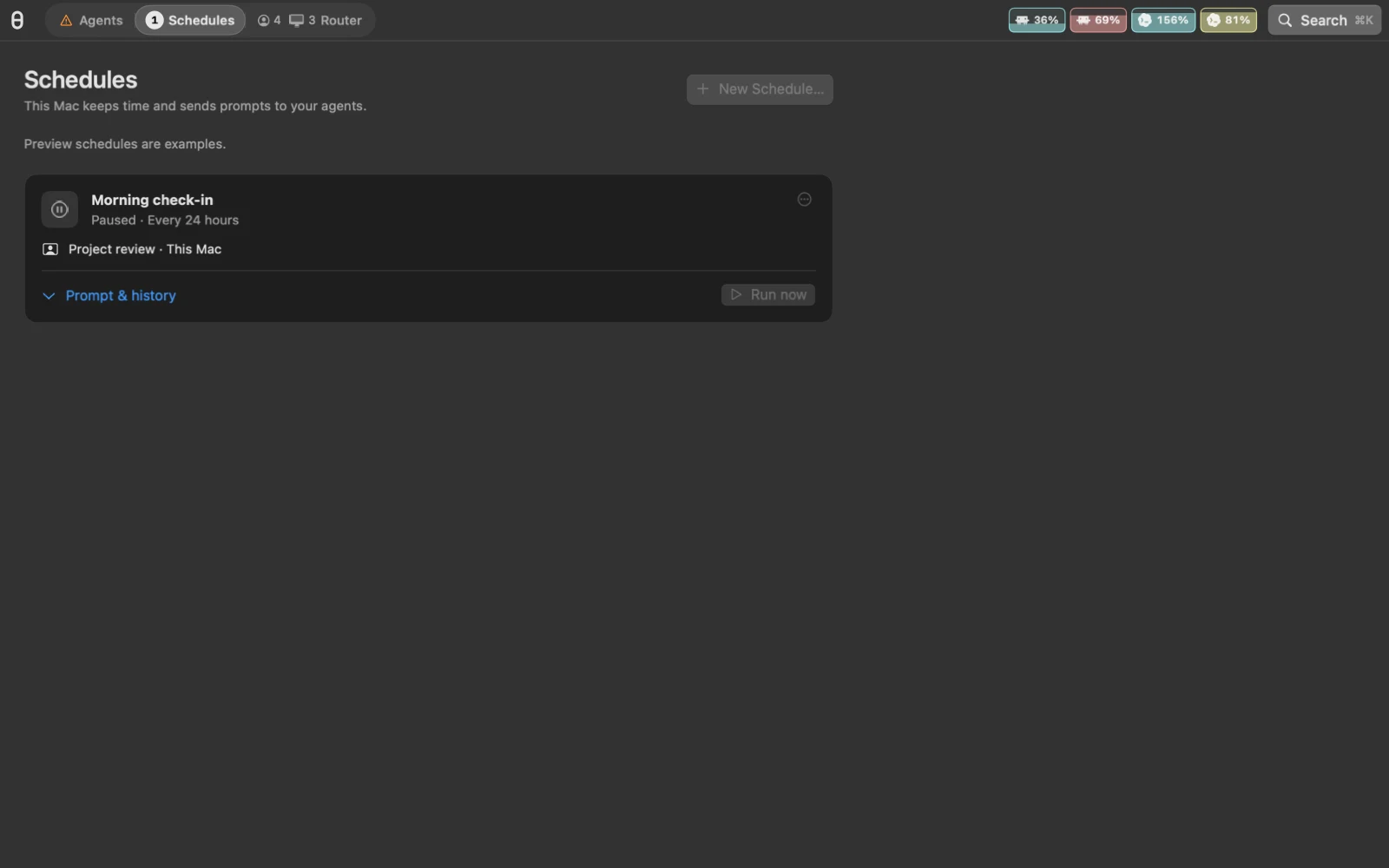
Create a schedule
- Open Schedules (
⌘2) and choose New schedule. Give it a name, write the prompt, and select the agent and computer that should receive it. - Choose the first run time and the interval. New schedules are saved paused. Turn on the individual schedule when you want delivery to begin.
- OH Pro can run a prompt once or deliver it on schedule. Allow OH in Login Items & Extensions when macOS asks. A signed-in Mac can deliver with the OH window closed.
Check a delivery
Open the schedule to see its next run and recent results. A delivered prompt has reached the session. Read the agent’s response in Agents.
OH waits for the selected session to accept a prompt. A paired computer must grant messaging access. A permission dialog, an offline machine, or a replacement session can keep a prompt waiting.
After sleep, one due slot is eligible. Older Board schedules remain available in Archived schedules.